
Public proof of X1 Algo SMS opt-in
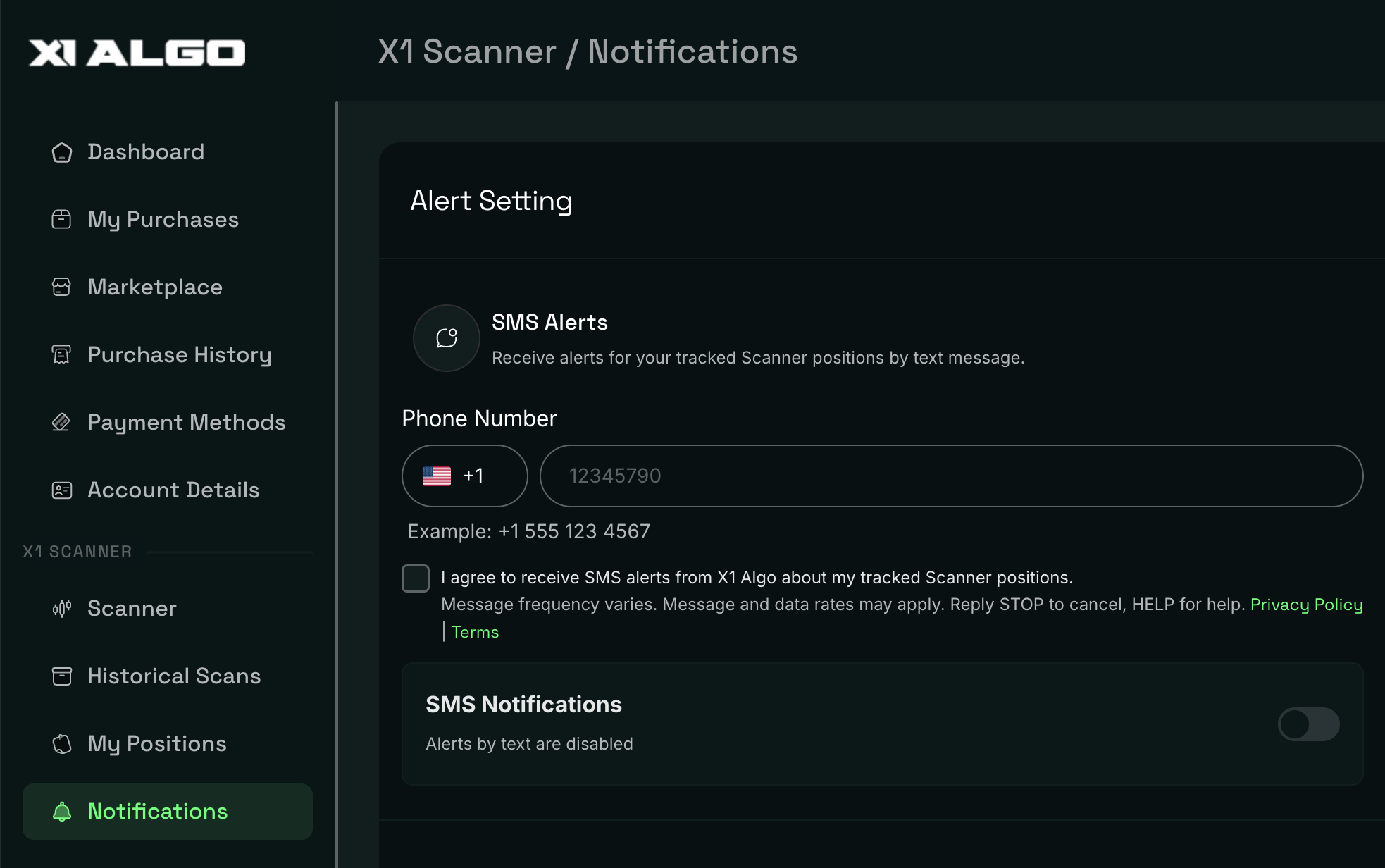
This page is provided so messaging reviewers can inspect the X1 Algo SMS consent flow without logging in. The Notifications tab and Alert Setting screen live behind a customer account. The screenshot below is the live opt-in UI.
Brand: X1 Algo, operated by The Redhill Group, LLC. Website: https://www.x1algo.com. Support: support@x1algo.com.
1.Messaging program
X1 Algo sends optional SMS alerts about a customer’s tracked Scanner positions. Messages are transactional account alerts, not marketing blasts. SMS is off by default. A message is sent only after the customer enters a mobile number, checks the SMS consent box, turns on the SMS Notifications toggle, and saves the form.
- Message type: Scanner position alerts by text message.
- Message frequency: Message frequency varies based on tracked positions and alert activity.
- Rates: Message and data rates may apply.
- Opt out: Reply STOP to cancel. Customers can also disable SMS in Alert Setting.
- Help: Reply HELP or email support@x1algo.com.
- Privacy: https://www.x1algo.com/privacy/
- Terms: https://www.x1algo.com/terms/
Mobile information, SMS opt-in data, and SMS consent are not shared, sold, rented, or disclosed to third parties or affiliates for marketing or promotional purposes. See SMS Messaging Privacy.
2.How customers opt in
- Create or sign in to an X1 Algo customer account.
- Open My Account → X1 Scanner → Notifications → Alert Setting.
- Enter a mobile number (country code + national number).
- Check the consent box: “I agree to receive SMS alerts from X1 Algo about my tracked Scanner positions. Message frequency varies. Message and data rates may apply. Reply STOP to cancel, HELP for help.” Privacy Policy and Terms links appear next to the checkbox. The checkbox is unchecked by default.
- Turn on the SMS Notifications toggle and click Update Changes.
SMS alerts are not enabled unless both consent and the toggle are saved. Customers may withdraw consent at any time by unchecking the box, turning the toggle off, or replying STOP.
3.Opt-in screenshot
The screenshot shows the default Alert Setting state: empty phone field, consent checkbox unchecked, and SMS Notifications off.
Direct image URL: /wp-content/uploads/sms-opt-in.png
4.STOP, HELP, and confirmation
- STOP: Cancels SMS alerts. The customer receives a confirmation that they have been unsubscribed.
- HELP: Returns support information and support@x1algo.com.
- START / YES / UNSTOP: May re-enable messaging only if the customer previously opted in through Alert Setting.
5.Suggested Twilio message flow
End users opt in after signing into their X1 Algo account. On My Account → Notifications → Alert Setting they enter a mobile number, check “I agree to receive SMS alerts from X1 Algo about my tracked Scanner positions. Message frequency varies. Message and data rates may apply. Reply STOP to cancel, HELP for help.”, enable the SMS Notifications toggle, and click Update Changes. The consent checkbox is unchecked by default. SMS is not sent unless consent and the toggle are both saved. Message frequency varies. Reply STOP to cancel, HELP for help. Screenshots of this login-gated consent flow: this page. Privacy: https://www.x1algo.com/privacy/. Terms: https://www.x1algo.com/terms/.